
Add Logged in User's IP Address to Form
Please note that this is now available as a plugin for easier installation. While you can use this document as a reference, the recommended method to add…
- Not yet re-checked
- Classic builder
Moved from our previous help site and not yet re-checked against the current product. Last edited Sep 20, 2024.
To set up a form to Auto-fill an IP address, you can follow the following steps below.
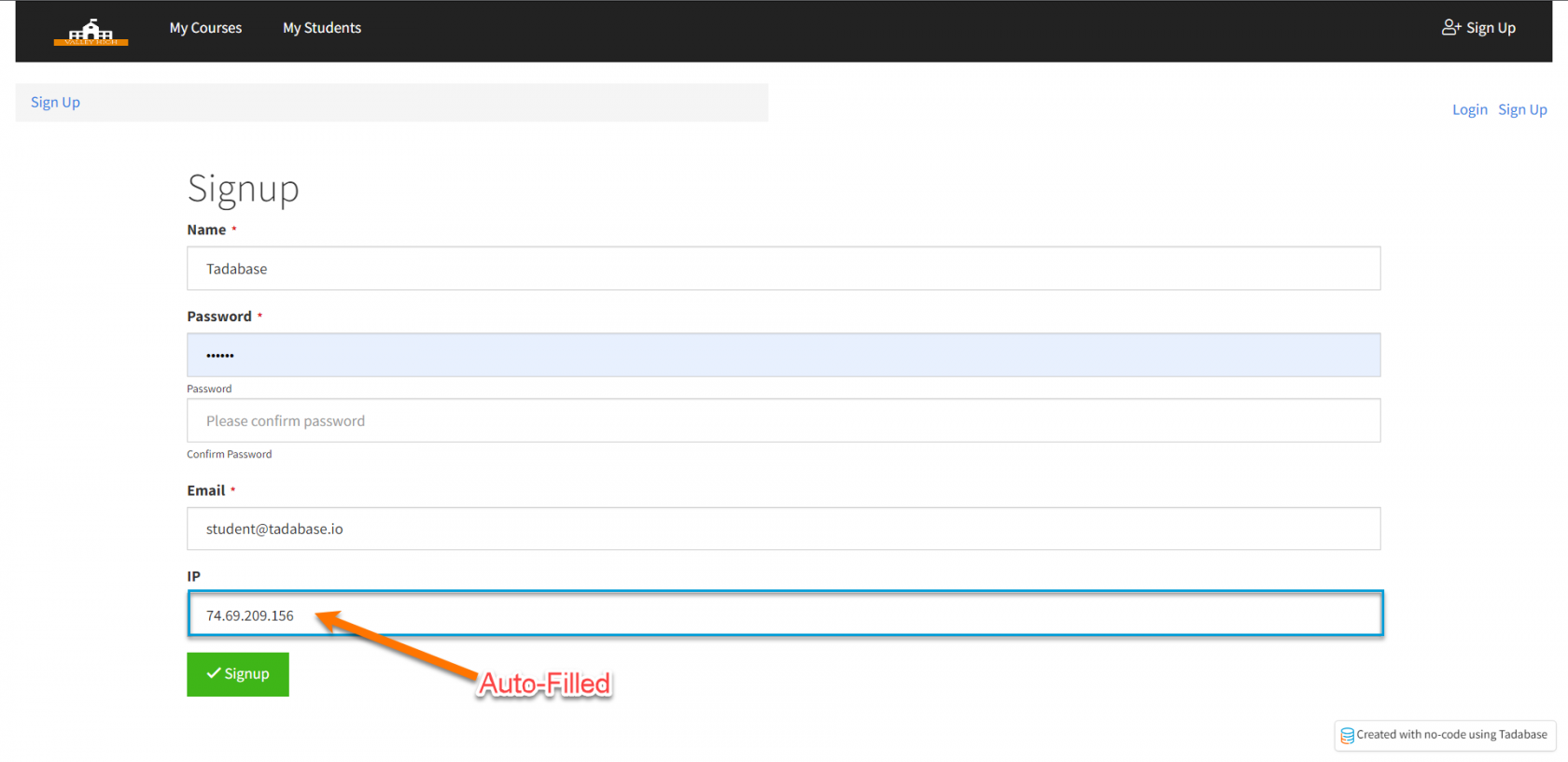
1. Add a Text field called "IP" to the Data table connected to the Form Component.

2. Get the Field ID of this text field. To do This, go to the Fields tab, click the settings, and copy the Field ID.

3. Navigate to the page containing the form. Within the page, find the Component ID.

4. Within the following code, edit the ID following "field" to the field ID from your table and the Component ID from your page.
var ipInputID = 'fieldkOGQ3gQlnA';
TB.render('component_39', function(data) {
    $.get("https://api.ipify.org", function(data) {
        $('#' + ipInputID)
            .val(data)
            .change();
    });
});
5. Add this code to the JavaScript tab of the page for a form component that will auto-fill the user's IP!
Was this page helpful?
Something wrong or missing on this page? Tell us.