
Pre Populate & Disable Date Range
This example could be used for a booking tool; here, we will use a date range field with the timer option enabled instead of the end date and…
- Not yet re-checked
- Classic builder
Moved from our previous help site and not yet re-checked against the current product. Last edited Sep 20, 2024.
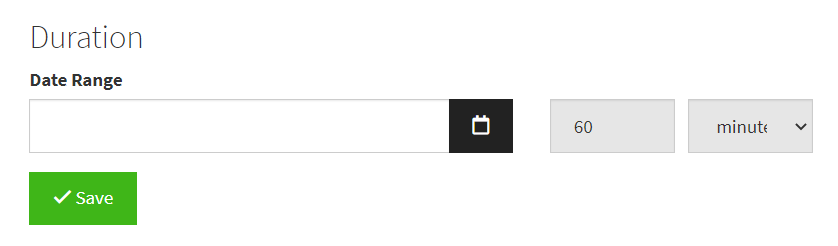
This example could be used for a booking tool; here, we will use a date range field with the timer option enabled instead of the end date and pre-populate and disable the input (number) field and disable the select integer (minutes, hours, days) field.
Step 1
Add a CSS class called “my-date-range” to the Date Range in the form

Step 2
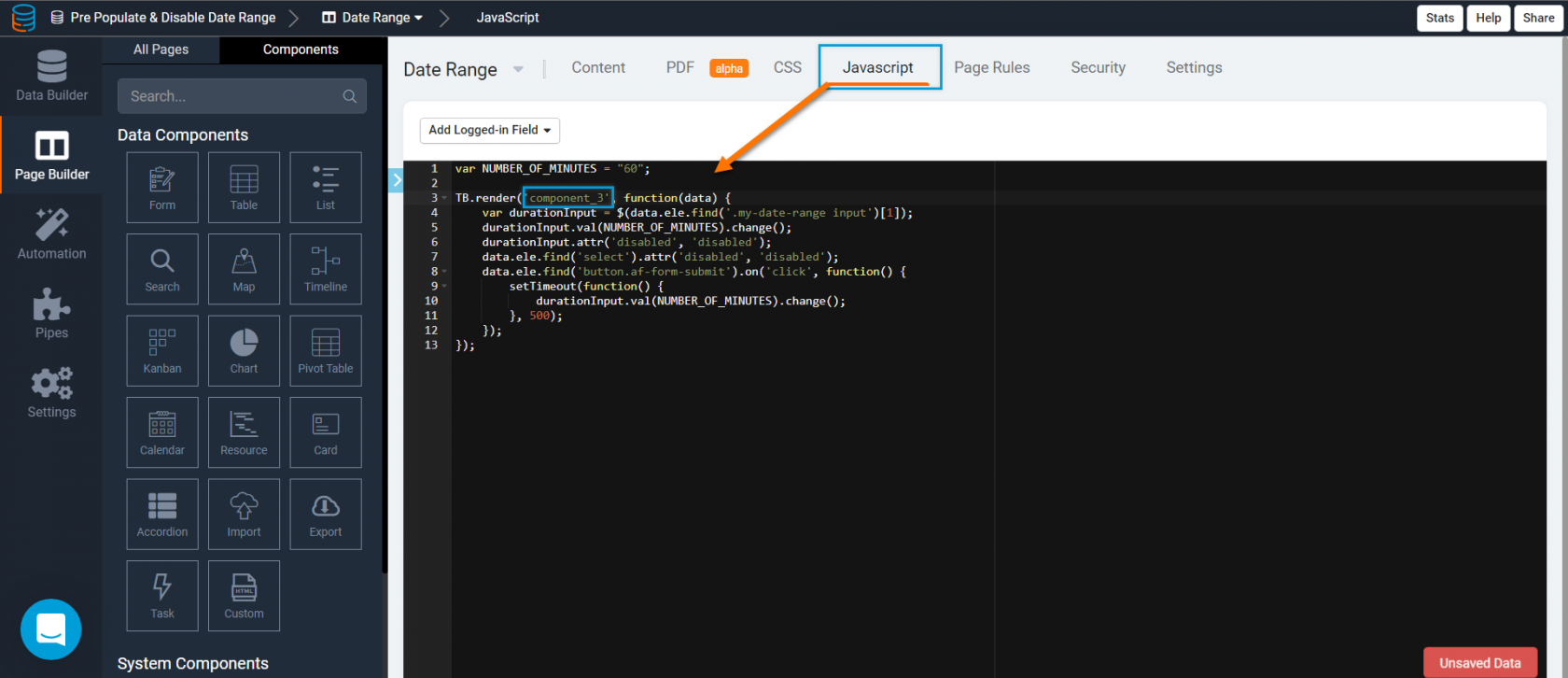
Find the Component ID of the Form.

Step 3
Add the following code to the JavaScript tab of your page.
var NUMBER_OF_MINUTES = "60";

TB.render('component_ID', function(data) {
    var durationInput = $(data.ele.find('.my-date-range input')[1]);
    durationInput.val(NUMBER_OF_MINUTES).change();
    durationInput.attr('disabled', 'disabled');
    data.ele.find('select').attr('disabled', 'disabled');
    data.ele.find('button.af-form-submit').on('click', function() {
        setTimeout(function() {
            durationInput.val(NUMBER_OF_MINUTES).change();
        }, 500);
    });
});
Original Community Post:
Was this page helpful?
Something wrong or missing on this page? Tell us.