
Enlarge Thumbnail Images
Please note that this is now available as a plugin for easier installation. While you can use this document as a reference, the recommended method to add…
- Not yet re-checked
- Classic builder
Moved from our previous help site and not yet re-checked against the current product. Last edited Sep 20, 2024.
Instead of opening an attachment field as full-size within a new tab, here is a way to stay on the same page and enlarge the image.

First, we will need to navigate to the page within the builder and add an HTML component.
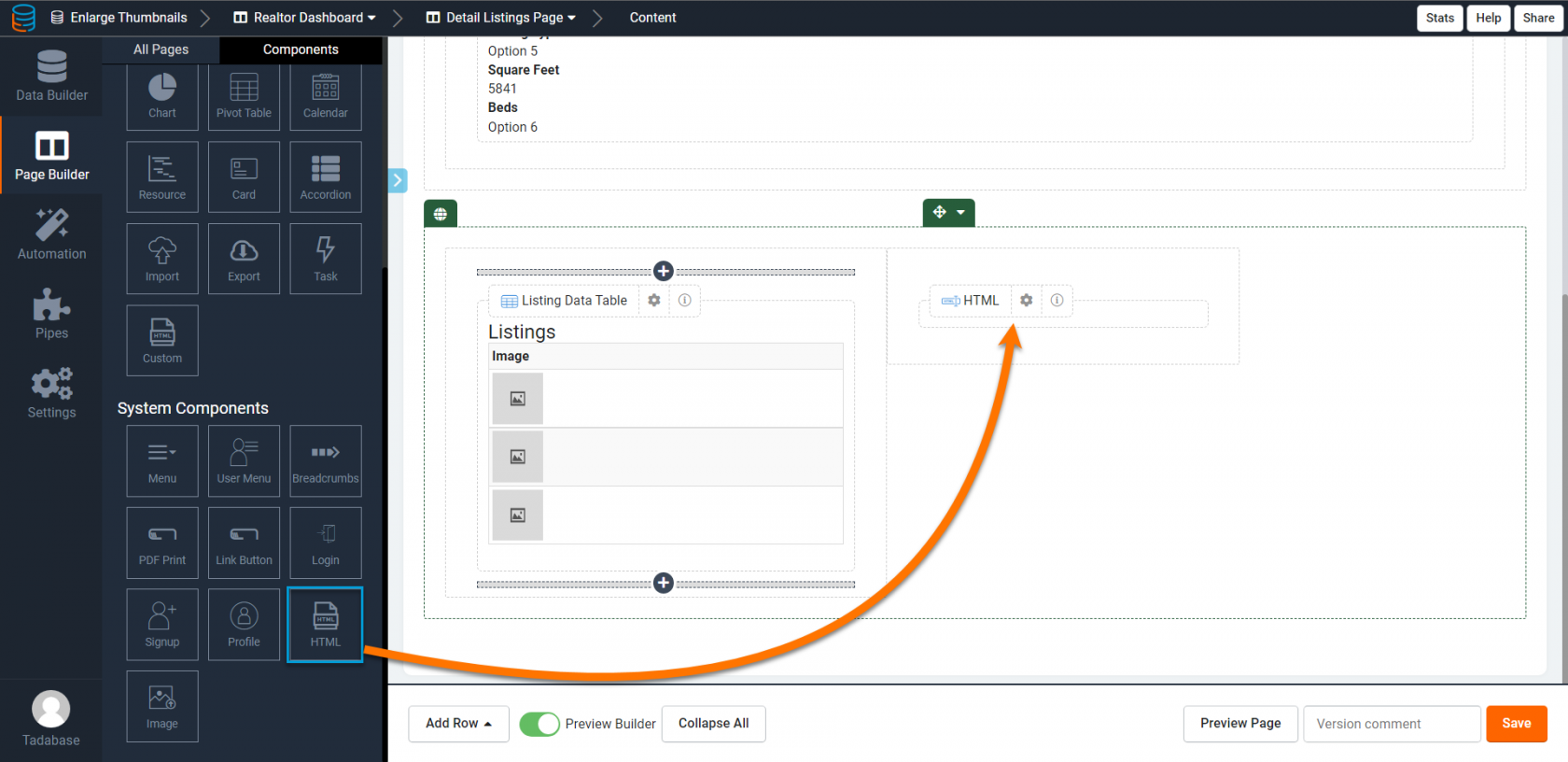
Next, you will Hover over the Information Icon to find the Component ID of the HTML component to use within your code.

Next, copy and paste the following code into your page's JavaScript tab.
displayComponent = "component_X";
jQuery('body').on('click', '.image-col a, .image-col img', function(e) {
    e.preventDefault();
    if ($(this).is("img")) {
        url = $(this).attr("src")
    } else {
        url = $(this).attr("href")
    }

    $html = "<div class='relative'><img src='" + url + "' class='img-responsive'><button type='button' style='position: absolute; top: 0;right: 0;' class='btn btn-danger btn-sm btn-hide-img'><i class='fa fa-times-circle' aria-hidden='true'></i></button>";
    $('[data-obj-id="' + displayComponent.replace("component_", "") + '"]').html($html);
});

jQuery('body').on('click', '.btn-hide-img', function(e) {
    e.preventDefault();
    $(this).parent().remove();
})
To finish, remove the "X" from the code and replace it with your component number.

Original Community Post:
Was this page helpful?
Something wrong or missing on this page? Tell us.