
Convert a file to Base64 and back
Use the Base64 File Converter pipe to turn a file URL into Base64 text for an API, or to save a Base64 image back into a record as a JPG.
- Verified Nov 17, 2026
- Classic builder
On this page
The Base64 File Converter pipe turns a file at a URL into Base64 text, and turns a Base64 image back into a JPG file saved in a record.
Use it when another service's API wants a file's contents inline as Base64 instead of a link, or sends you an image that way.
Before you start #
Some pipe settings also convert for you. In the page builder, when you map a pipe parameter to a File or Image field as a Record Value, a Send as Base64 checkbox appears beside it. Tick it to send the file's contents as Base64 instead of its URL.
Install the pipe #
- Open the pipe library In the builder, click Pipes in the icon bar on the left. The All Pipes list opens.
- Find the pipe Type
Base64in Search..., or use Choose Categories and pick Files. - Install it Click the Base64 File Converter card and click Install.
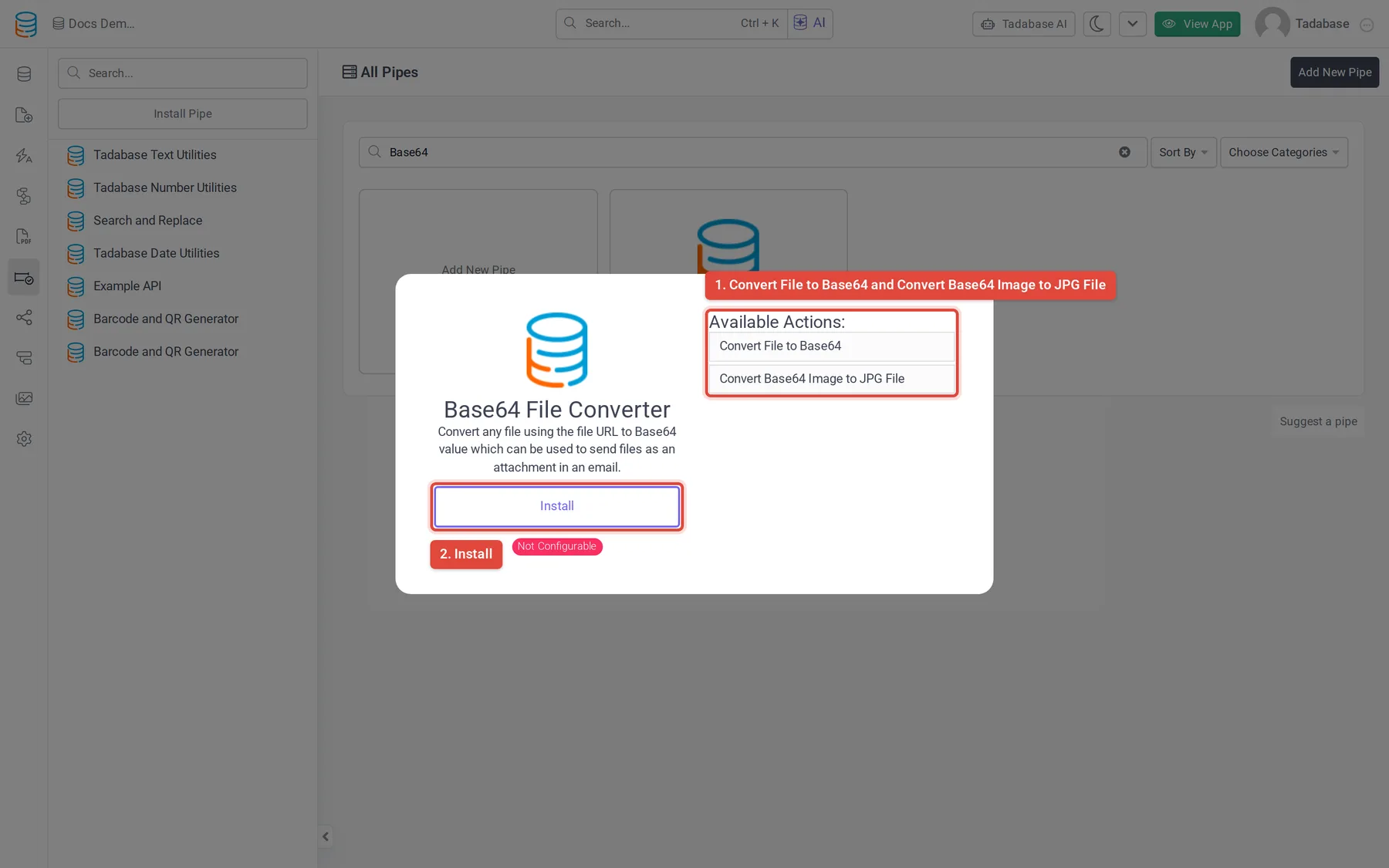
The pipe is Not Configurable and has no global parameters. Every value is set on the call you run.
Convert File to Base64 #
Takes one parameter, URL: the address of the file to convert. Map it to a File or Image field of the record, or type a link to any publicly reachable file.
| Response value | What it holds |
|---|---|
| Status | Whether the conversion worked. |
| Base64 | The file's contents encoded as Base64. This is the value to send on to another API. |
| Filename | The file's name. |
| MimeType | The file type, for example application/ or image/. Many APIs ask for it next to the Base64 content. |
| File URL | The URL that was converted. |
| Size in Bytes, Size in Kilobytes, SIze in Megabytes | The file's size, so you can check it against the receiving API's limit. |
| Raw Output | The output field of the converter's response. |
Base64 text is about a third larger than the file itself. The pipe sets no file size limit of its own, but the service you send the Base64 to usually does, so check its limit against Size in Kilobytes or Size in Bytes.
Convert Base64 Image to JPG File #
Takes a Base64-encoded image, makes a JPG file from it and saves the file in a field of a record in your app. It writes to your app through the Tadabase REST API, so it needs an API key. All seven parameters are required.
| Parameter | What to send |
|---|---|
| Base64 Image | The Base64-encoded image. |
| Data Table ID | The ID of the table that holds the record. In a workflow or page mapping, pick the table ID from the record's values; you can also copy it from the builder's URL, between dataTables/ and /records. |
| Field Slug | The slug of the File or Image field to save the JPG in, for example field_46. To see slugs, open the table's Fields list and turn on Show Field Slug. |
| Record ID | The ID of the record to save the file in. Map it from the record. |
| App ID, API Key, API Secret | The credentials of an API key for this app, from Settings > API Keys. See Create and manage API keys. The key needs permission to update records in that table. |
The call returns Status, Message (the reason when it fails) and Record ID, the record the image was saved to.
Run the pipe #
The usual place is a workflow. Add a Trigger Pipe step, pick the call under Pipe Method and map its parameters. A later step can then use the response, for example a Trigger Webhook step that sends Base64 and MimeType to another service, or an Update Record step that saves them. See Run a pipe from a workflow and Using pipes.
Common problems #
- Convert File to Base64 returns nothing. The URL must be reachable from the internet without signing in. Check that the record's file field has a file.
- Convert Base64 Image to JPG File fails. Read Message. Check the field slug, that the API key is active and allowed to update records, and that Base64 Image is not empty.
Was this page helpful?
Something wrong or missing on this page? Tell us.