
Change Labels Language
Please note that this is now available as a plugin for easier installation. While you can use this document as a reference, the recommended method to add…
- Not yet re-checked
- Classic builder
Moved from our previous help site and not yet re-checked against the current product. Last edited Sep 20, 2024.
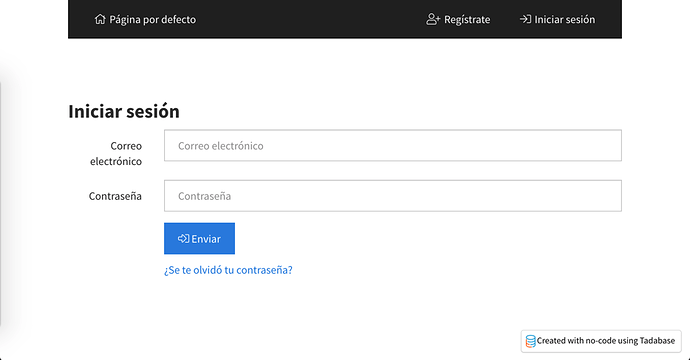
To change the language of the login component. Add the following Code to the JavaScript tab of the login page.
var emailLabel = 'Correo electrónico';
var passwordLabel = 'Contraseña';
var submitButtonText = 'Enviar';
var forgotPasswordText = '¿Se te olvidó tu contraseña?';
var sendVerificationCodeText = "Envíe el código de verificación";
var backText = "atrás";
$(function() {
    var updateMainFields = function() {
        $('.form-group:nth-child(2) > .col-sm-2').html(emailLabel);
        $('.form-group:nth-child(3) > .col-sm-2').html(passwordLabel);
        $('[ng-model="item.username"]').attr('placeholder', emailLabel);
        $('[ng-model="item.password"]').attr('placeholder', passwordLabel);
        $('[data-unique-id="page_1_4"].btn').html("<i class='fal fa-sign-in-alt'></i> " + submitButtonText);
        $('[ng-click="setFormMode(\'forgotPass\')"').html(forgotPasswordText);
    };
    var setOnClickEvent = function() {
        $('[ng-click="setFormMode(\'forgotPass\')"').click(function() {
            $('[ng-click="setFormMode(\'login\')"').click(function() {
                updateMainFields();
                setOnClickEvent();
            });
            $('[ng-model="item.email"]').attr('placeholder', emailLabel);
            $('[ng-click="forgotPass()"]').html('<i class="fal fa-shield-check"></i> ' + sendVerificationCodeText);
            $('[ng-click="setFormMode(\'login\')"').html(backText);
            updateMainFields();
        });
    };
    updateMainFields();
    setOnClickEvent();
});
To change the text for the confirm password for the profile component, you may use the following steps.
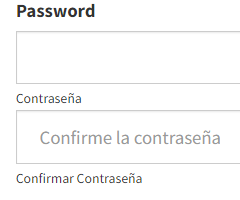
First, find your component ID, as shown in the image below.

Then add the following code to the JavaScript section of the page.
var textForPassword = "Contraseña";
var textForConfirmPassword = "Confirmar Contraseña";
var textForInputPlaceholder = "Confirme la contraseña";

TB.render('component_ID', function(data) {
    $("#field_block_password > div > div > span:nth-child(1)").html(textForPassword);
    $("#field_block_password input:nth-child(2)").attr("placeholder", textForInputPlaceholder);
    $("#field_block_password > div > div > span:nth-child(3)").html(textForConfirmPassword);
});
You may use the following steps to change the Login, Sign Up, and Logout text for a User Menu Component.
Get the User Menu component ID.

Add the following code to the JavaScript section of your page.
TB.render('component_layout_ID', function(data) {
    data.ele.find('.x-login-btn').html('Connexion');
    data.ele.find('.x-signup-btn').html('Inscription');
    data.ele.find("[ng-click=" + "'logout()'" + "]").html('Déconnexion');
});
Original Community Post:
Was this page helpful?
Something wrong or missing on this page? Tell us.