
Choose where uploaded files are stored
Store files uploaded to File and Attachments fields with Tadabase, in your own Amazon S3 bucket, or in Dropbox, and learn how secure files work.
- Verified Nov 17, 2026
- Classic builder
On this page
Files uploaded to File and Attachments fields are saved to Tadabase's storage unless you choose otherwise. Use File Storage Settings to keep new uploads in your own Amazon S3 bucket or in your Dropbox instead, for example to meet your company's storage or compliance rules.
Open File Storage Settings #
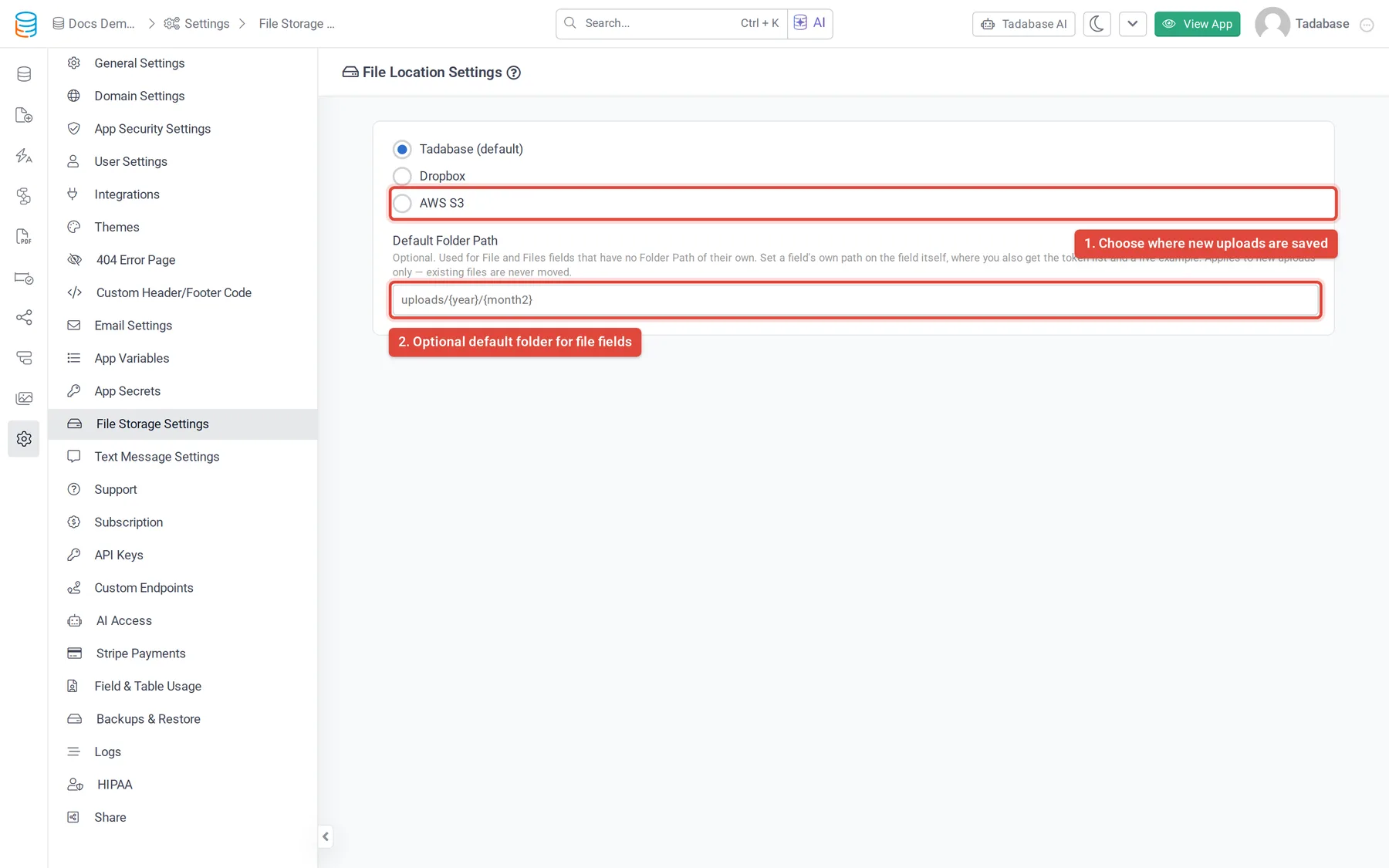
- Open the settings In the builder, click Settings, then File Storage Settings. The page is titled File Location Settings.
- Choose a location Under File Storage Service Location, pick Tadabase (default), Dropbox or AWS S3. The options for the location you pick appear below.
- Save Click Save in the Unsaved Changes bar at the bottom of the page.
The storage options #
| Option | Where new files go | What you set up |
|---|---|---|
| Tadabase (default) | Tadabase's own storage. | Nothing. You can set a Default Folder Path (see below). |
| AWS S3 | An Amazon S3 bucket in your AWS account, with an optional second bucket for secure files. | A bucket, its region and, with the IAM Method, an access key. See Save uploaded files to your own Amazon S3 bucket. |
| Dropbox | A folder in the Dropbox account you authorize. | Click Authorize Dropbox and optionally set a Folder Path. See Save uploaded files to Dropbox. |
Dropbox and AWS S3 are not included in every plan. If your plan does not include one, its option is greyed out and shows an upgrade icon.
Default Folder Path #
With Tadabase (default) or AWS S3 selected, the page also shows Default Folder Path. It is optional and sets the folder for File and Attachments fields that have no Folder Path of their own. A field's own Folder Path always wins.
Type folder names separated by / and add automatic values in curly braces, for example uploads/{year}/{month2}. The tokens the field settings offer are:
| Token | Value |
|---|---|
{year} | Year of the upload, for example 2026 |
{month2} / {month} | Month with a leading zero (01-12) / without (1-12) |
{day2} / {day} | Day with a leading zero (01-31) / without (1-31) |
{ts} | Upload time as a Unix timestamp |
{record_id} | The record's ID |
{table} / {table_id} | The table's name / ID |
Folder names are cleaned automatically: they are lowercased and spaces become dashes. The path applies to new uploads only. The folders sit inside your app's own folder in the storage location. Dropbox uses its own Folder Path setting instead.
Secure and non-secure files #
Each File and Attachments field has a Secured setting, chosen when you create the field.
- Non-secure files are saved as public files. Anyone who has a file's link can open it.
- Secure files are saved as private files. The file's own link does not open it. When someone opens the file in your app, Tadabase creates a signed link for them that expires after 10 minutes.
- Opening a secure file from a record is recorded in the file access log. See File upload and file access logs.
Secure files work with Tadabase storage and with your own S3 bucket. With S3 you can send them to a separate Secure Bucket. Dropbox does not support secure files: when Dropbox is selected, the Secured setting is not shown on file fields.
Check that it worked #
After saving, upload a file to a File or Attachments field in your app, then look for it in your S3 bucket or Dropbox folder. If you chose AWS S3 but left out a required value (the bucket or region, or the key and secret with the IAM Method), new files are saved to Tadabase storage instead, so check the settings if the file does not appear.
Was this page helpful?
Something wrong or missing on this page? Tell us.