
Change your app's general settings
Rename your app and set its date and time format, time zone, logo, favicon, loading spinner, read-only mode, Tadabase badge and default app.
- Verified Nov 17, 2026
- Classic builder
On this page
General Settings holds the settings that apply to your whole app: its name, how dates and times show, its logo and favicon, the loading spinner, and a few switches such as read-only mode and the Tadabase badge.
To open it, click Settings in the builder's left menu, then General Settings. The screen has three tabs: Basic Settings, Loading Spinner and Performance.
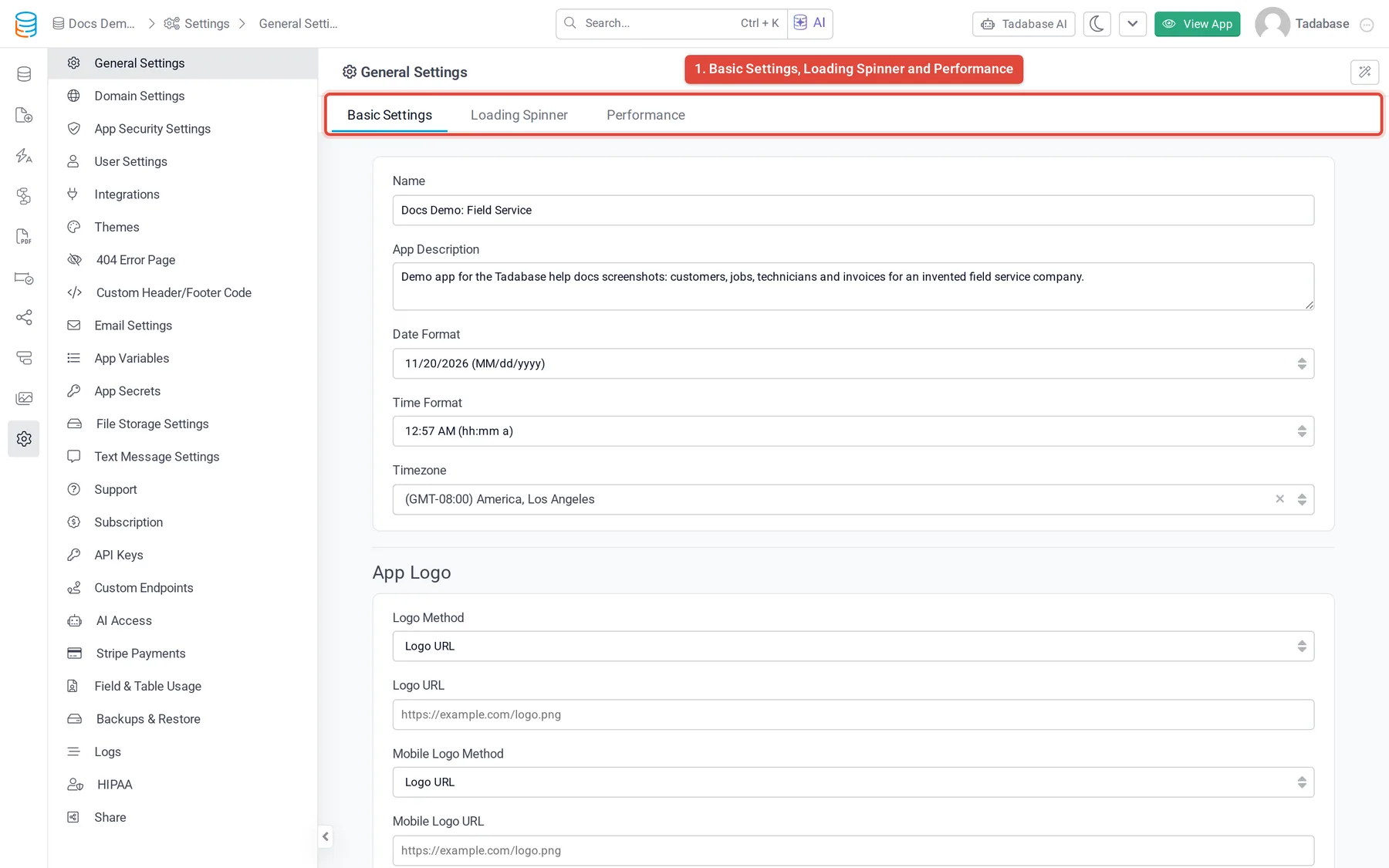
Save your changes #
Changes on the Basic Settings tab are not saved as you type. When you change something, an Unsaved Changes bar appears at the bottom of the screen. Click Save to keep the changes or Discard to undo them.
Name, description, date and time #
| Setting | What it does |
|---|---|
| Name | Your app's name. Changing it does not change the app's address: the slug in the URL stays the same. To change the address, see Use your own domain. |
| App Description | A note for you and other builders about what the app is for. |
| Date Format | How dates show across the app: MM/, MMM dd, yyyy, dd/ or dd.MM.yyyy. Each option shows today's date in that format. |
| Time Format | 12-hour (hh:mm a) or 24-hour (HH:mm). |
| Timezone | The time zone the app uses for dates and times, for example when a workflow sets a field to the current date and time. |
App Logo #
Set the logo your app's layouts can show, and a separate logo for small screens.
- Choose how to add the logo Under Logo Method, choose Logo URL to link to an image that is already online, or Upload Logo to upload one.
- Add the image Paste the address into Logo URL, or drag the file onto the upload box. Uploads can be JPG, PNG, GIF or SVG, up to 5 MB. A Preview of the logo appears; click Remove Logo to clear it.
- Add a mobile logo (optional) Use Mobile Logo Method and Mobile Logo URL (or Upload Mobile Logo) the same way.
- Save Click Save in the Unsaved Changes bar.
Design Settings #
| Setting | What it does |
|---|---|
| Use Full Page Width | On: pages fill the whole browser width. Off: pages keep a fixed width and wide screens show space on both sides. |
| Loading Spinner | Show a loading animation while the app loads. Turn it off to show nothing. |
| Custom Loading GIF URL | The address of an animated image to use instead of the standard spinner. Leave it blank to use the standard one. |
| Use Custom Spinner and Spinner Selection | Use one of your own spinners (see below). On plans without custom spinners, this area says Custom spinners are available on upgraded plans. |
| Custom Favicon URL | The address of an icon to show in the browser tab instead of the Tadabase icon. |
| App Icon & Color | The icon and color that mark this app in your list of apps. |
| Use App Data Component Defaults | Shown on plans that include the Data Component. When on, new components open the Data Components selector, with the Theme Type you choose. |
Make your own loading spinner #
- Open the Loading Spinner tab On General Settings, click the Loading Spinner tab, then Add New Spinner.
- Name it On the General tab, enter a Spinner Name and an optional Description.
- Design it On the Configuration tab, pick a spinner under Choose Spinner, set its Size (px) and Speed (seconds), and choose Show Inline or Show as Overlay. You can add Loading Messages that rotate while the app loads, style them, and add a progress bar. The Live Preview shows the result.
- Save it Click Save. The spinner is listed on the Loading Spinner tab.
- Use it On the Basic Settings tab, turn on Use Custom Spinner, pick it under Spinner Selection and save.
Notifications #
Import Completion Emails controls the email the app owner gets when an import finishes: Every import, Only when records fail, or Off. An import that stops before it can read its file is reported unless this is Off.
Advanced Features #
| Setting | What it does |
|---|---|
| Read Only | Stops records from being added or changed from the live app, for example while you do maintenance or run a demo. When it is on, Error Notification sets the message people see when they try to save. If you leave it blank they see "This app is in read only mode." |
| Alpha Features | Turns on features that are still being built and are not recommended for apps in production. This switch only appears on accounts that have alpha features available. |
| Show Created With Badge | Shows or hides the Tadabase badge in your live app. Hiding it needs a plan that allows removing the badge (Business Growth and up); on other plans the badge stays on. |
| Default Account App | Sends visitors who open your Tadabase subdomain without an app name to this app. |
| Suppress App Side Errors | Hides error pop-ups from people using the live app. |
| Require Version Comment | Builders must add a version comment each time they save a page. If your plan does not include page version comments, the switch is disabled and shows an upgrade icon. |
Builder Loading Preferences #
In a large app, the builder can be faster if it loads fewer pages. The Performance tab has these switches. They are personal: they change only what loads in your builder, not for other builders and not in the live app.
- Don't Load Pages Without a Layout
- Don't Load Default Pages: skips the Login, Sign Up and Profile pages.
- Only Load Pages in Specific Layouts: then tick the layouts under Select Layouts to Load.
- Don't Load Disabled Pages: skips pages whose status is Inactive.
Was this page helpful?
Something wrong or missing on this page? Tell us.