
Add, edit and delete fields
Add fields to a data table, change their settings and type, reorder them and delete them safely. Lists every field type in the Add Field window.
- Verified Nov 17, 2026
- Classic builder
On this page
Fields are the columns of a data table. Each field holds one kind of value, such as a name, a date or a price, and its type decides how the value is entered, checked, shown and calculated.
Add fields in the Data Builder, then change their settings, order and type as your app grows.
Add a field #
- Open the table In the builder, open Data Builder and select the table.
- Open the Fields tab Click the Fields tab.
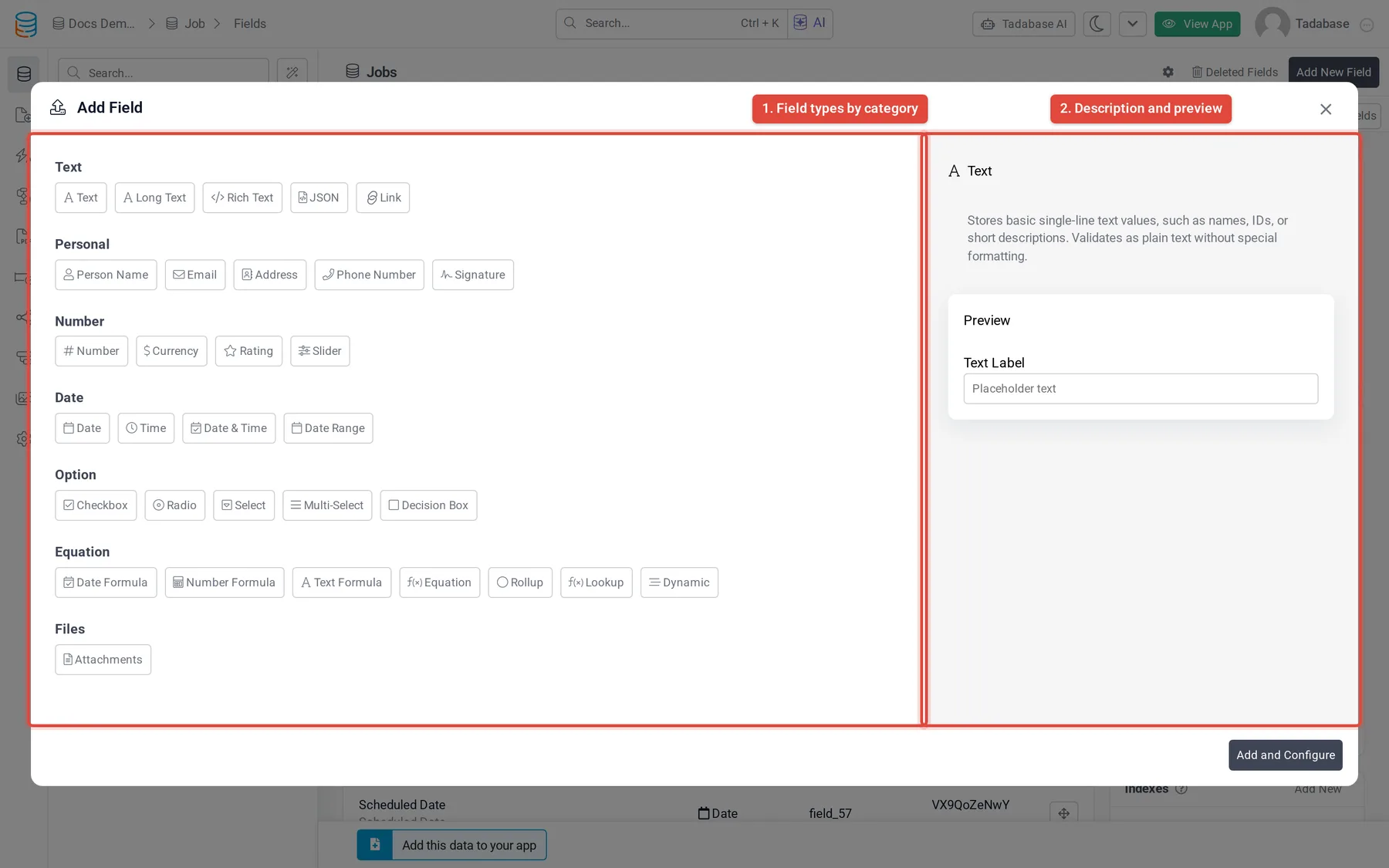
- Click Add New Field Click Add New Field. The Add Field window lists every field type by category, with a description and a preview of the type you select.
- Pick a type Click a field type, for example Text, then click Add and Configure.
- Name and save it Enter a Name, set the options for the type, and click Save.
Description is for builders only: app users never see it.
Connection fields are not in the Add Field window. Add them from the table's Connections tab with Add New Connection; see Connection fields.
Field types #
The Add Field window groups the field types like this. Each type links to its own page.
| Category | Field types |
|---|---|
| Text | Text, Long Text, Rich Text, JSON, Link |
| Personal | Person Name, Email, Phone Number, Signature, Address |
| Number | Number, Currency, Rating, Slider |
| Date | Date, Time, Date & Time, Date Range |
| Option | Checkbox, Radio, Select, Multi-Select, Decision Box |
| Equation | Date Formula, Number Formula, Text Formula, Equation, Rollup, Dynamic |
| Files | Attachments |
- Dynamic appears only when your plan includes Dynamic fields.
- Count, Maximum, Minimum, Average and Sum are no longer in the menu: they were replaced by Rollup, which does the same calculations on connected records. Existing fields of those types keep working.
- File and Image were replaced by Attachments. Existing File fields keep working, but you can no longer add new File or Image fields.
- Every table already has an Auto Increment record number, so it is not in the menu.
Edit a field #
Open a field's settings in either of these ways:
- On the Fields tab, click the field's row.
- On the Records tab, double-click the field's column header.
Change the settings and click Save. The settings page also shows where the field is used in your app; see Field Usage.
Reorder fields #
On the Fields tab, drag a field by its handle (Drag to reorder) to a new position. The new order is saved when you drop it.
Change a field's type #
On a saved field's settings page, the field type is shown at the top right. When the type can be changed, it opens a list of the types you can switch to. Pick one and confirm with Change.
| Current type | Can change to |
|---|---|
| Text, Long Text, Rich Text, Email | Any other type in this row |
| Text, Long Text | Also JSON, when every stored value is valid JSON |
| JSON | Long Text only |
| Number, Currency, Phone Number, Rating, Slider | Any other type in this row |
| Date, Time, Date & Time | Any other type in this row |
| Checkbox, Radio, Select, Multi-Select | Any other type in this row |
Other types, such as Link, Person Name, Address, Signature, Decision Box and the Equation types, cannot be changed. Create a new field instead.
Delete a field #
- Open the field Open the field's settings from the Fields or Records tab.
- Click Delete Click Delete at the bottom of the settings.
- Check what it affects If the field is used elsewhere, the window groups the uses into Blocks delete (fix these first), Will break (type the field name to confirm) and Removed for you (cleaned up for you).
- Confirm Click Delete field, or confirm the delete prompt.
The field and its data move to Deleted Fields, where you can restore them for 30 days. The message after the delete also has an Undo link.
You can't delete a field when:
- It is the display field of a connection from another table. Change the display field in that table first.
- It is the table's only field. Add another field first.
Some built-in fields have no Delete button.
Character limits #
Each field type is stored in a database column with a fixed size. These are the limits that matter in practice:
| Field type | Maximum length |
|---|---|
| Text | 50, 100 or 255 characters, set by Max Character Length |
| Long Text, Rich Text | No limit you will reach in normal use |
| JSON | 256 KB per value |
| 255 characters | |
| Phone Number | 50 characters |
| Person Name | Title 10 characters; First, Middle and Last Name 100 characters each |
| Address | Address and Address Line 2: 300 characters each; City 100; State 50; Country 50; Zip 20; Latitude and Longitude 15 each |
Was this page helpful?
Something wrong or missing on this page? Tell us.