
Add custom code to your app's header and footer
Add tracking scripts, meta tags, CSS and JavaScript libraries to every page of your live app from the Custom Header/Footer Code settings.
- Verified Nov 17, 2026
- Classic builder
On this page
Use Custom Header/Footer Code to add code that loads on every page of your live app: tracking scripts such as Google Analytics, meta tags, web fonts, your own CSS, or JavaScript libraries.
Open the setting #
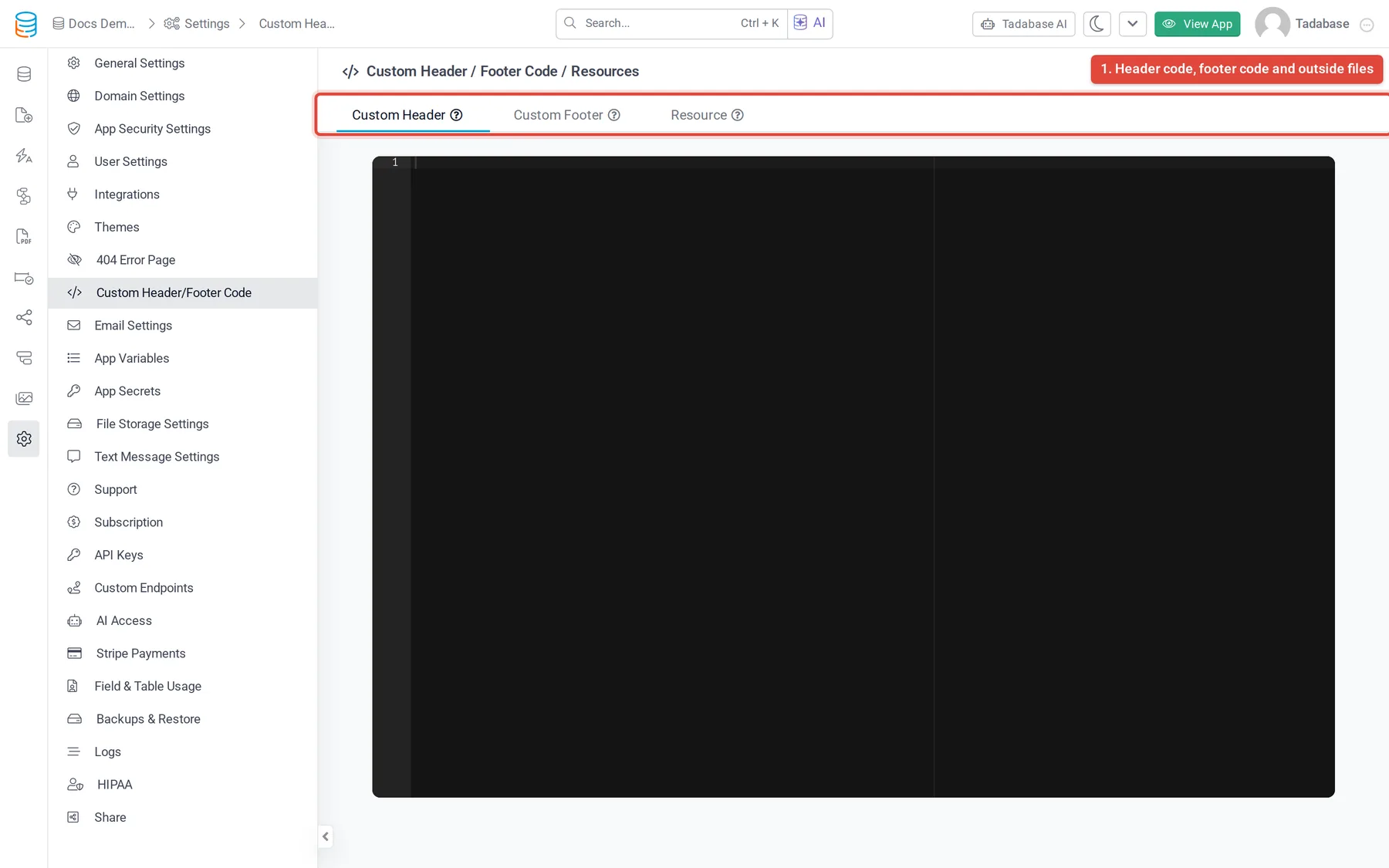
In the builder, click Settings in the left menu, then Custom Header/Footer Code. The screen has three tabs: Custom Header, Custom Footer and Resource.
Add code to the header or footer #
- Pick the tab Custom Header code goes in the
<head>of every page. Use it for meta tags, stylesheets, fonts and scripts that must load first. Custom Footer code goes at the end of every page. Use it for analytics, chat widgets and other scripts that can load after the page. - Paste the code Paste the HTML into the code editor, including the
<script>or<style>tags. - Save Click Save in the Unsaved Changes bar at the bottom of the screen, then reload your live app to check the result.
Load an outside CSS or JavaScript file #
The Resource tab loads files by their address, without writing the tags yourself.
- Add a row On the Resource tab, click Add New Resource.
- Fill it in Choose where it loads (Header or Footer), what it is (Javascript or CSS), and paste the file's full address into Enter URL.
- Save Click Save in the Unsaved Changes bar. Click the x at the end of a row to remove it.
Resources load before the code in Custom Header or Custom Footer, so your own code can use a library you add here. A row whose address is not a valid URL is skipped.
Add custom CSS #
For CSS that applies to the whole app, put it in Custom Header inside <style> tags, or load a stylesheet on the Resource tab. For CSS that only one page or layout needs, use that page's or layout's CSS tab in the Page Builder instead.
To find what to style, open your live app, right-click the element and choose Inspect. The browser's developer tools show the element's classes, and you can try style changes there before you copy them into Tadabase.
For JavaScript that reacts to what happens on a page, see Use JavaScript callbacks in your app.
Plans and trial accounts #
- Custom header and footer code and resources are a plan feature. If your plan does not include them, the menu item shows an upgrade lock and changes are not saved.
- On a trial account that is not verified, the code is saved but not loaded in the live app. The tabs show: "For security reasons custom code will not be loaded in your live app until your account has an active subscription or is verified." Contact support@tadabase.io to ask for verification.
Was this page helpful?
Something wrong or missing on this page? Tell us.