
Run a workflow on a schedule
Start a workflow daily, weekly, monthly or on a custom repeat rule, choose which records each run processes, and pause or test it.
- Verified Nov 17, 2026
- Classic builder
On this page
The Schedule trigger runs a workflow on a timetable instead of in response to a change. Use it for regular work such as reminders for overdue invoices every morning, a weekly summary, or a monthly clean-up. Each run processes the records in its table that match the filters you set.
Set up a scheduled workflow #
- Choose the trigger Click the Trigger card and choose Schedule in the Time group.
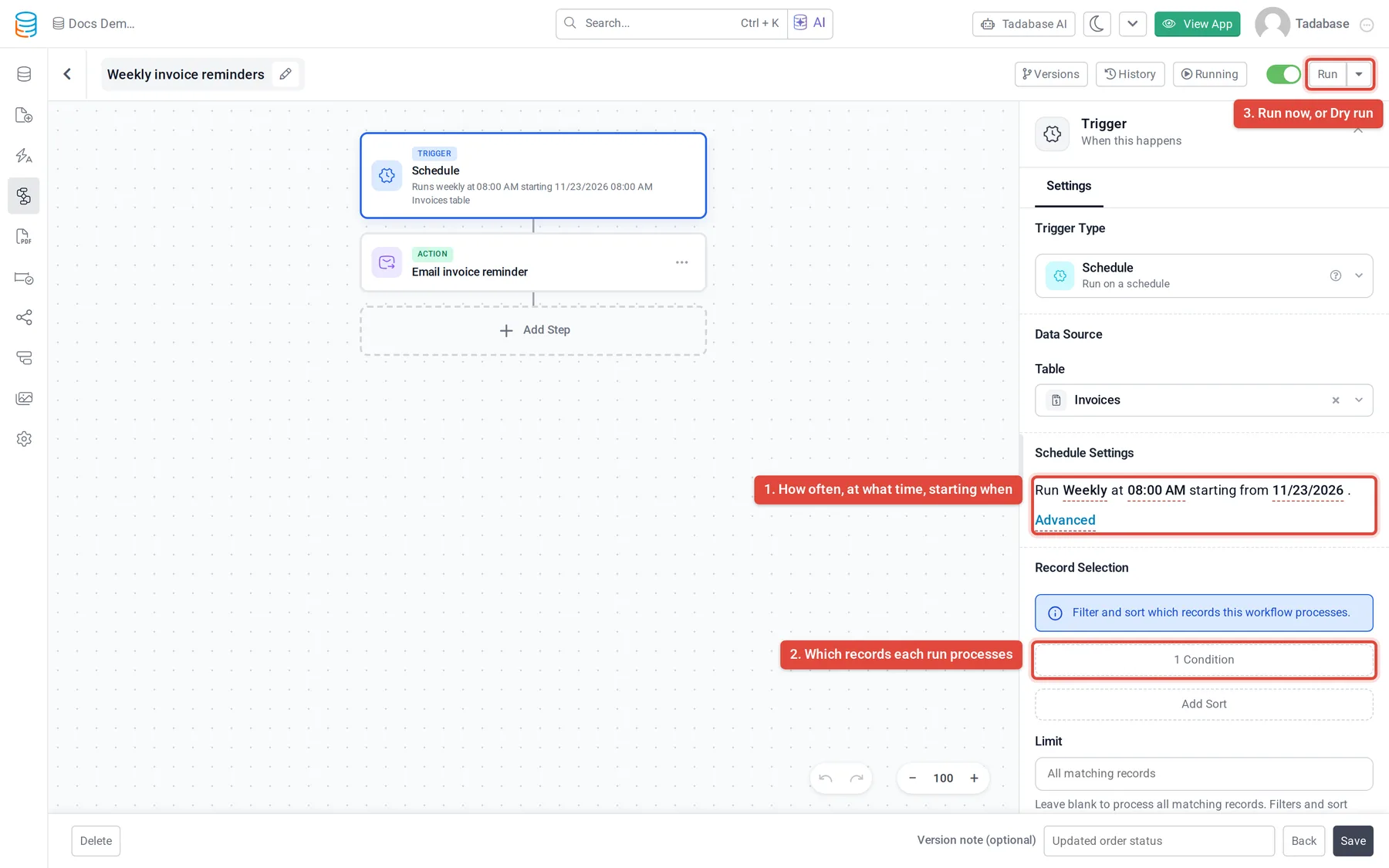
- Pick the table Under Data Source, choose the Table whose records the workflow should process, for example Invoices. A scheduled workflow always has a table; the schedule settings appear once you pick one.
- Set how often Under Schedule Settings, the sentence reads Run [how often] at [time] starting from [date]. Click each part to change it.
- Choose the records Under Record Selection, set filters, a sort order and a Limit (see below).
- Add steps, switch on and save Add your steps, switch the workflow to Active and click Save.
How often it can run #
| Option | Runs | Plan |
|---|---|---|
| Every Minute | Once a minute | Business Elite |
| Hourly | Once an hour, at the minute of the start time | Business Growth, Business Pro and Business Elite |
| Daily | Once a day at the time you set | All plans |
| Weekly | Once a week, on the weekday of the start date | All plans |
| Monthly | Once a month, on the day of the start date | All plans |
| Quarterly | Once every three months | All plans |
Options your plan does not include are not shown in the list. The start time and date set when the first run happens; later runs repeat from there.
Schedules use your app's time zone.
Advanced schedules #
When the built-in options are not enough, click Advanced next to the schedule (only shown if your plan includes advanced schedules). The Advanced Schedule window builds a repeat rule (RRULE):
- Frequency: Yearly, Monthly, Weekly or Daily, plus Hourly and Minutely if your plan allows them. Interval repeats every N of them, for example every 2 weeks.
- End Condition: Never ends, After a number of occurrences, or On date.
- Advanced Options: By Weekday, By Month, By Hour, By Month Day, By Year Day, By Week Number, By Minute, By Set Position and Week Start.
- Start Date & Time: when the rule starts.
The right-hand side shows the RRULE Output and the Next Occurrences, so you can check the dates before you click Save Schedule. Back in the trigger panel, Advanced Schedule shows the rule in words, with Edit and Clear.
Examples: every Monday, Wednesday and Friday (Weekly with three weekdays under By Weekday); the last Friday of every month (Monthly, By Weekday Friday, By Set Position -1); every two weeks on Tuesday (Weekly, Interval 2, By Weekday Tuesday).
Choose which records each run processes #
Under Record Selection ("Filter and sort which records this workflow processes."):
- Filters: click the filter summary to add conditions, for example Status is "Sent" and Due Date is before today. Only matching records are processed.
- Sort order: decides which records are processed first.
- Limit: the most records one run processes. Leave it blank to process all matching records.
Test, pause and check runs #
- Run now: once the workflow is saved, click Run at the top right to run it straight away. Open the arrow next to it and choose Dry run to walk through the steps without changing or sending anything.
- Pause: switch the workflow to Inactive and click Save. Only Active scheduled workflows run. Switch it back to Active to resume.
- Check runs: click History to see each run, which records it processed and what every step did. Running shows runs that are queued or in progress.
Was this page helpful?
Something wrong or missing on this page? Tell us.