
Send record data to another system with Trigger Webhook
The Trigger Webhook action posts a record, connected records or an earlier step's result as JSON to one or more URLs, such as Zapier, Make or your own server.
- Verified Nov 17, 2026
- Classic builder
On this page
The Trigger Webhook action sends data from your app to a web address each time the workflow reaches it, for example to tell your dispatch system about a new job, or to start a Zap or a Make scenario.
Set it up #
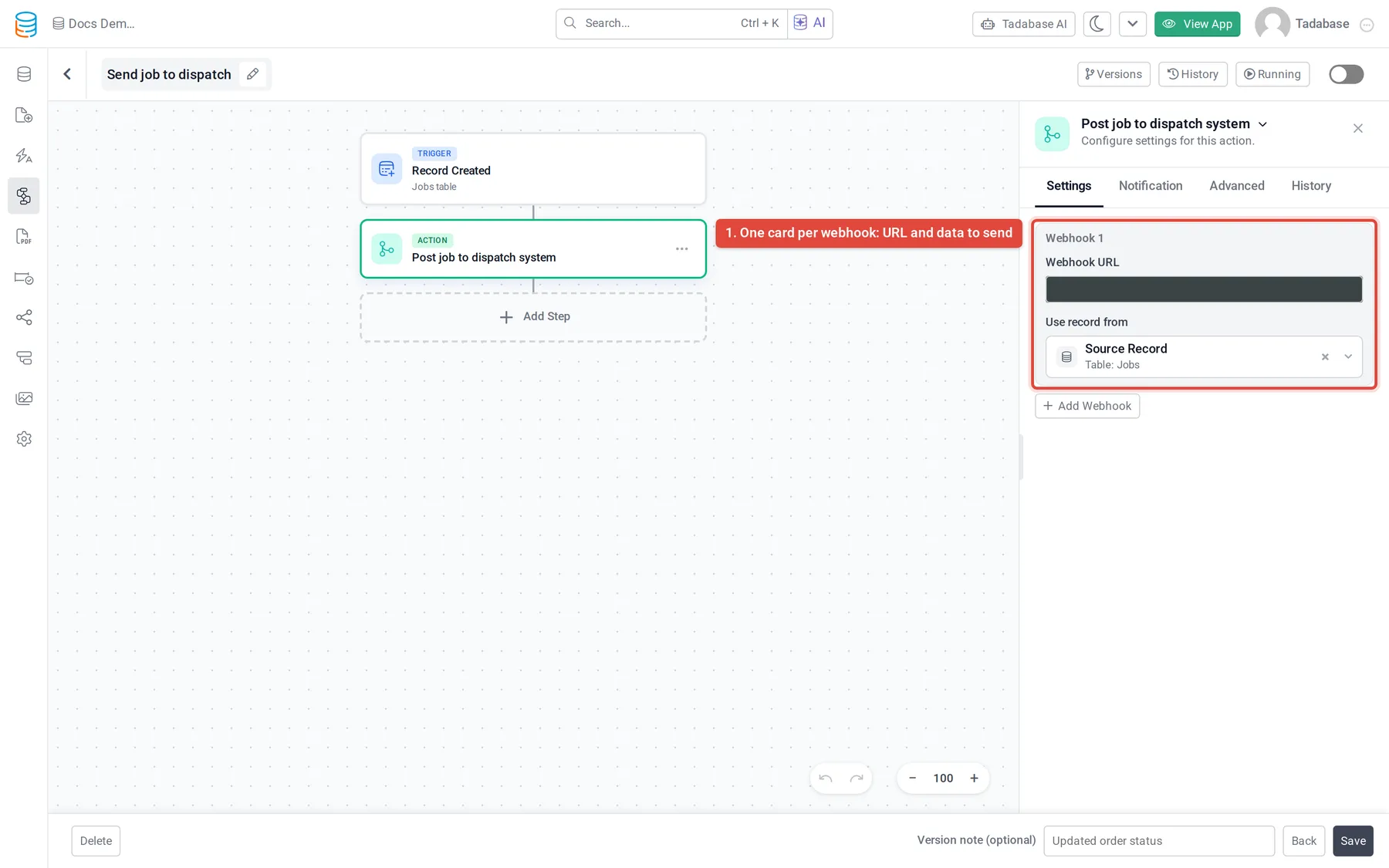
- Add the action Add a step, click Add Action, then under Communication choose Trigger Webhook.
- Enter the address In Webhook URL, paste the address that receives the data, for example
https://example.com/webhook. Use anhttps://address. - Choose the data Under Use record from, choose what to send (see the table below).
- Send to more places (optional) Click Add Webhook to send to another address in the same step. Each webhook has its own URL and record choice. Remove one with its trash icon.
What it sends #
Every webhook is an HTTP POST with a JSON body (content-type: application/json). The body depends on Use record from:
| Use record from | JSON body |
|---|---|
| Source Record (the workflow's record) | record (every field of the record), record_id, table_id, table_name and source_type. |
| A record from an earlier step (under Step Data) | The same shape for one record. When the earlier step produced several records, records (a list), record_id (a list of IDs) and record_count. |
| A connected table (under Connected Data) | records, record_id, record_count, table_id and table_name for the connected records. Only the first 100 connected records are sent. |
| An earlier step's response (under Step Data) | That step's result as it came back: status, status_code, headers and data. |
Record IDs and other IDs in the body are encoded the way the Tadabase API uses them, so you can send them back to the API as they are.
When a webhook fails #
- A reply with a status other than 2xx, no reply within 15 seconds, or no connection within 5 seconds marks the step as failed, for example
Webhook responded with status 500. - Redirects are not followed. Use the final address.
- Addresses on
localhostor a private network, and URLs with a user name or password in them, are refused before anything is sent. - A failed webhook is not sent again. When the step has several webhooks, the others are still sent.
- The workflow continues with the next step unless Abort workflow if this step fails is on in the step's Advanced tab.
Check that it worked #
Open the step's History tab, or the workflow's run history, and select the Trigger Webhook step. For each webhook it shows the address (with secrets masked), the record source, the JSON that was sent, the status code and the reply. See Workflow history and logs.
To test without a real receiver, point the URL at a request-inspection service and run the workflow on one record.
Was this page helpful?
Something wrong or missing on this page? Tell us.