
Add components to a page
Add a table, form, chart, menu or other component to a page, choose the records it shows, and change its settings and design.
- Verified Nov 17, 2026
- Classic builder
Components are the building blocks of a page: a table of records, a form, a chart, a menu. You place them on a page in the Page Builder and choose the records each one works with.
Rows, columns and components #
A page's Content tab is made of rows. Each row is split into columns, and each column holds one or more components. Hover over a row or column and open its menu to Edit it, or click Add New Row to add another row.
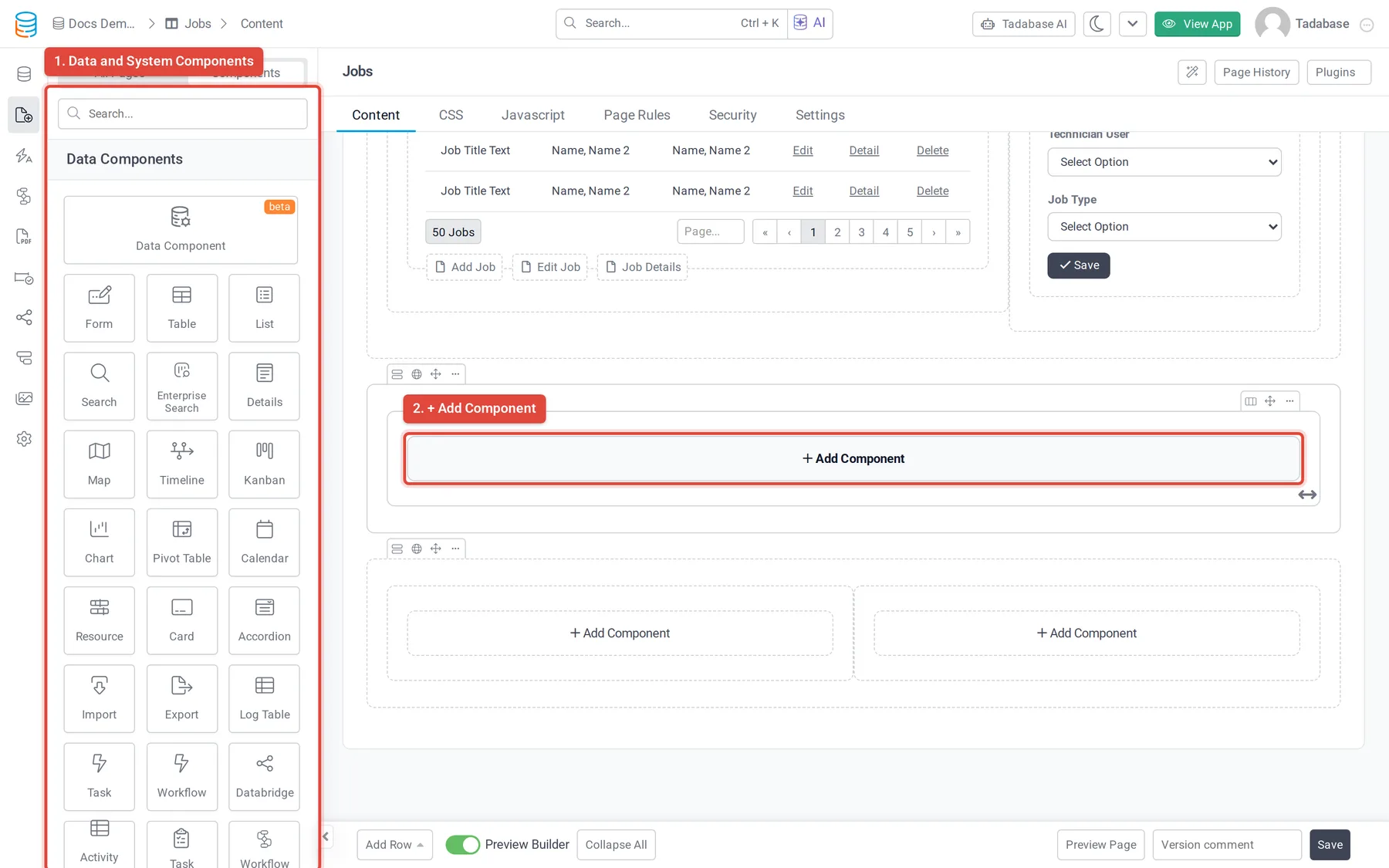
There are two kinds of components, listed separately on the Components tab of the left panel:
- Data Components show, collect or summarize records from your tables: forms, tables, charts, calendars and so on.
- System Components help people move around and manage their account: menus, login and sign-up forms, HTML, images and so on.
Add a component #
- Open the page In the Page Builder, click the page in the page list. Its Content tab opens.
- Pick a spot In an empty column, click Add Component. The column shows Select a component from the left.
- Choose the component On the Components tab of the left panel, click the component you want. You can also drag a component from that list straight into a column.
- Choose its records For a data component, choose the table and which of its records it should show. The choices depend on the page; see Choose which records a component shows.
- Set it up and save Pick the fields and options in the component's settings window, then save it.
Change a component #
Hover over a component on the page to show its toolbar. Click the pencil (Edit) to reopen its settings, or Copy Component to copy it.
Data components open with tabs along the top. For a table they are Data Source, Columns, Filters, Groups, Options and Design; other components have tabs that fit what they do. The Design tab changes fonts, colors, borders and spacing; see Change how your app looks.
Which component to use #
| To | Use | Read more |
|---|---|---|
| Let people add or edit a record | Form | Form component |
| List records | Table, List, Card, Accordion | Table, List, Card, Accordion |
| Show one record (on a child page) | Details | Data components |
| Plan, schedule or track work | Calendar, Kanban, Timeline, Resource | Calendar, Kanban, Timeline, Resource |
| Summarize data | Chart | Chart component |
| Let people search | Search | Search component |
| Move records in or out | Import, Export | Import component |
| Navigate | Menu, User Menu, Breadcrumbs, Link Button | Menu, User Menu, Breadcrumbs, Link Button |
| Sign people in or let them manage their account | Login, Signup, Profile | Login, Signup, Profile |
| Add your own content | HTML, Image | HTML, Image |
Some components depend on your plan: Pivot Table, Map, Enterprise Search, Custom and Data Component. When your plan does not include one, it is either missing from the list or shown with a lock and cannot be added. See Pivot tables, Map, Enterprise Search, Custom component and Data Component.
For the full list, see Components overview.
Was this page helpful?
Something wrong or missing on this page? Tell us.