
Choose which table and records a component shows
The first step of every data component: pick its table and which records it shows, then use Quick Add or Customize. Includes a list of all data components.
- Verified Nov 17, 2026
- Classic builder
On this page
Data components show, collect or summarize records from one of your tables: a form, a table, a list, a chart and so on. The first thing you do when you add one is choose its table and which of that table's records it works with.
Where data components go #
Data components are listed under Data Components on the Components tab of a page in the Page Builder. They can be added to pages only, not to layouts. Some are offered only on certain pages: Details and Single Map need a page that shows one record, and only Table, List, Details and Card can go on a PDF page.
Pick the table and records #
- Add the component On the page's Content tab, click Add Component in an empty column, then click the component on the Components tab. You can also drag it into a column.
- Choose the records The settings window opens with a question such as Which records should this table display? (the wording follows the component). Select one option.
- Finish with Quick Add or Customize Click Quick Add to add the component with all of the table's fields, or Customize to open its settings and pick the fields yourself. See Quick Add or Customize.
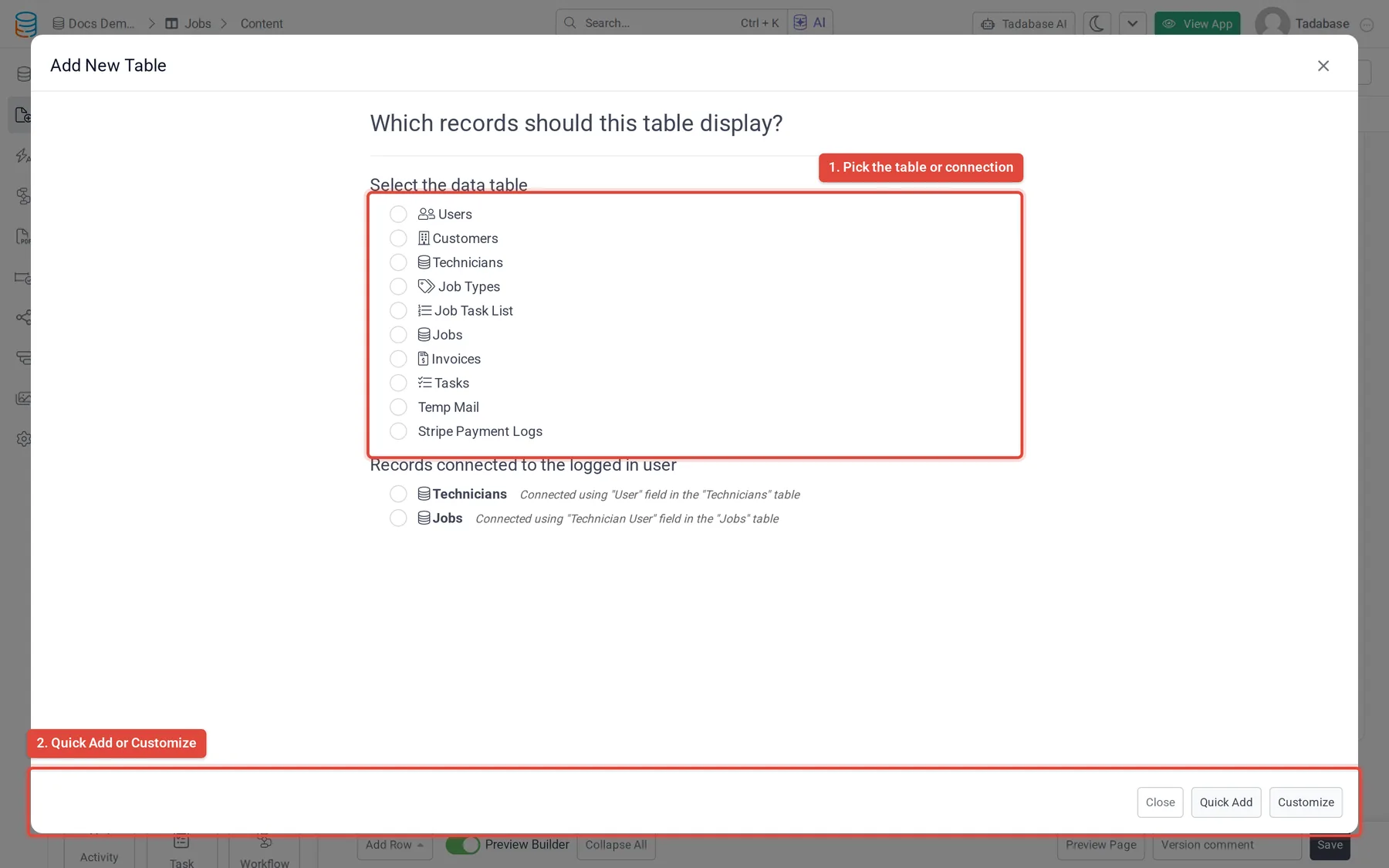
For tables, lists and most other data components the options are grouped like this:
| Option | When you see it | What the component shows |
|---|---|---|
| Select the data table | Always | Every record in the table you pick. Narrow it later with data source filters. |
| Records connected to the logged in user | When a table has a connection field to the Users table, or the Users table has a connection field to it | Only the records connected to the person who is signed in. Each connection field is listed as its own choice. |
| Records connected to this (record) | On a page that shows one record, such as a details page, when another table connects to or from the page's table | Records connected directly to the page's record, for example the jobs of the customer being viewed. |
| Records Related to this (record) | On a page that shows one record, when a table is one more connection away | Records connected through a second table, for example the invoices of all jobs of the customer being viewed. |
Next to each connected option, the builder names the connection field it uses, and a diagram of the connection appears beside the list when you select one. This helps when two fields connect the same tables.
Forms and Details ask a different question #
A Form asks What would you like this form to accomplish?: add a new record, edit the page's record, or add or edit a record connected to the page's record. See Add a form to create or edit records.
A Details component asks Which record should this details component display?: the page's own record, or a record it is connected to. See Show one record with the Details component.
Quick Add or Customize #
After you pick the records, the window offers two buttons:
- Quick Add adds the component straight away with the table's fields already in it. A form gets every editable field, laid out in two columns (three when there are more than ten fields).
- Customize opens the component's settings so you choose the fields, filters and options yourself.
For a Table on a page that does not show a record, Quick Add first shows Add connected components, where you can answer Yes to build related pages at the same time:
| Question | What it adds |
|---|---|
| Include a form to add (records) into this table? | A new child page with a form, opened in a popup from an add button on the table. |
| Include a link to view more details about (records)? | A details page with a Details component, and a link column in the table that opens it. |
| Include a table of connected (records) in the (record) details page? | Shown when you add the details link. Adds a table of each connected table's records to that details page. |
| Include popup form to add new (connected records)? | Adds a form for those connected records, opened from the new table. |
On a page that already shows a record, Quick Add adds the table without these questions. You can change everything Quick Add created afterwards: hover over the component and click the pencil (Edit).
The data components #
| Component | Use it to | Read more |
|---|---|---|
| Form | Add or edit a record | Form, Form rules |
| Table | Show records in rows and columns | Table |
| List | Show records as a list or a grid of boxes | List |
| Details | Show one record | Details |
| Card, Accordion | Show records as cards or expandable rows | Card, Accordion |
| Search, Enterprise Search | Let people search for records | Search, Enterprise Search |
| Map, Single Map | Show records with an address on a map | Map |
| Calendar, Resource, Timeline, Kanban | Plan and track work | Calendar, Resource, Timeline, Kanban |
| Chart, Pivot Table | Summarize records | Chart, Pivot tables |
| Import | Let people import records from a file | Import |
| Custom, Data Component | Build your own display | Custom, Data Component |
The list also has Export, Log Table and Workflow. Some components depend on your plan, among them Pivot Table, Map, Enterprise Search, Custom, Data Component and Workflow. When your plan does not include one, it is missing from the list or shown with a lock.
Was this page helpful?
Something wrong or missing on this page? Tell us.