
Run page rules before a page loads
Use page rules to check conditions before a page loads, then show a message instead of the page or redirect the user to another page or website.
- Verified Nov 17, 2026
- Classic builder
On this page
Page rules check conditions each time a page is opened, before it loads. When a rule's conditions match, the user sees a message instead of the page or is sent somewhere else. For example: if the logged-in user's phone number is empty, send them to the Profile page.
Add a page rule #
- Open the Page Rules tab In the Page Builder, open the page and select Page Rules. A page with no rules shows "Use Page Rules to run custom conditions on a page prior to loading."
- Add a rule Click Add New Rule. The rule is named Page Rule #1, Page Rule #2 and so on; click the name to change it.
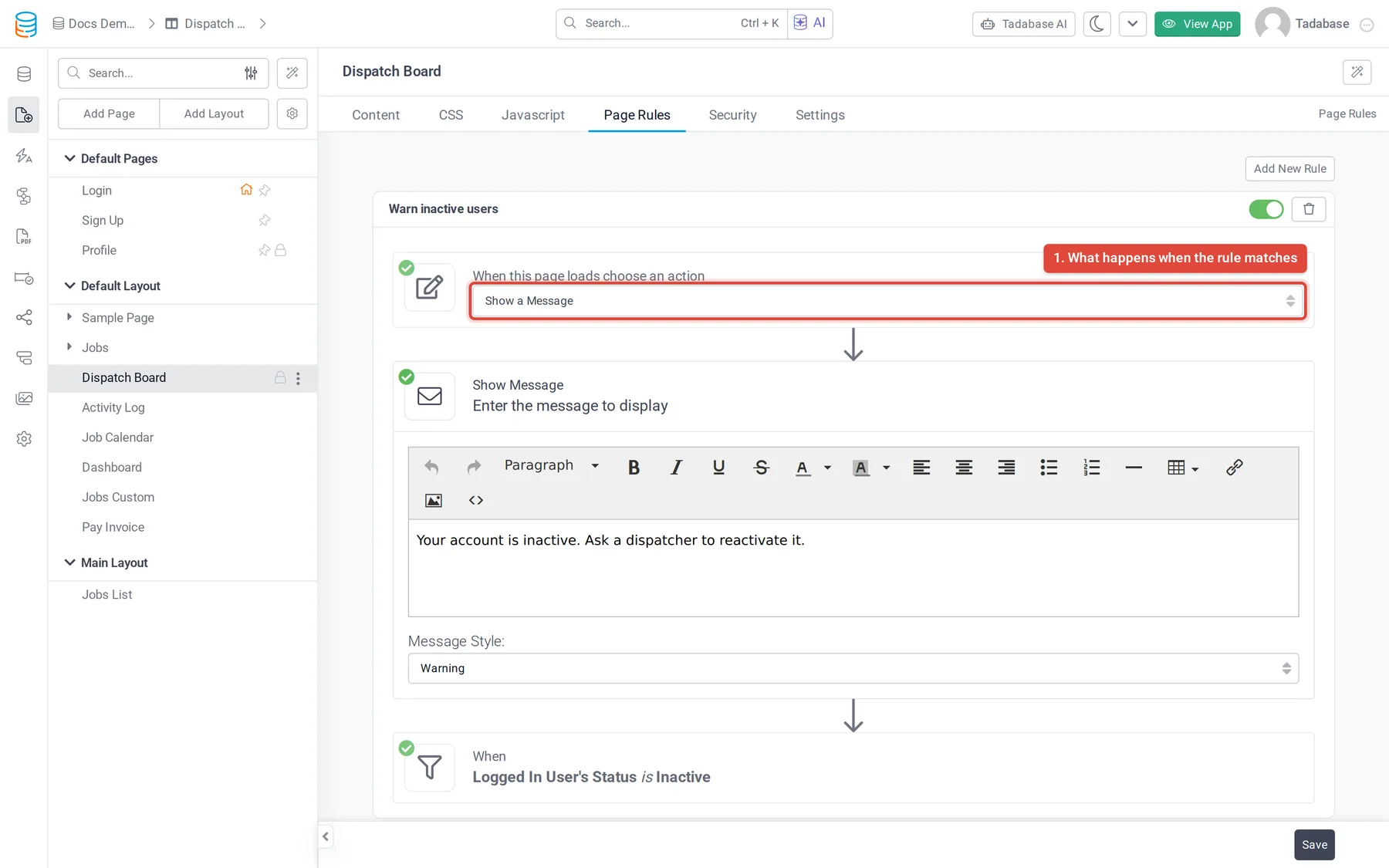
- Choose the action Under When this page loads choose an action, pick one of the actions below and fill in its details.
- Add conditions Click Add Condition and set the field, operator and value. With more than one condition, choose Match All or Match Any. A rule without conditions runs every time (the builder shows "Always (No Conditions Set)").
- Save Click Save at the bottom of the tab.
Actions #
| Action | What happens |
|---|---|
| Show a Message | The page's content is replaced by your message. Write it in the editor and pick a Message Style: Danger/ |
| Redirect to an existing page | The user is sent to the top-level page you choose under Redirect to following page. |
| Redirect to parent page | The user is sent to the page above this one. Only offered on record (child) pages. |
| Redirect to another website URL | The user is sent to the address under Redirect to following custom URL. |
What a condition can check #
- On any page: fields of the logged-in user, such as their role, status or any field in the Users table.
- On a record (child) page: also the fields of the record the page is showing.
- The result of a pipe, if you connect one to the condition.
Turn off, reorder or delete rules #
- Use the switch on a rule to set it to Disabled. Disabled rules are skipped.
- With two or more rules, drag a rule by its move icon to change the order, and use Expand All or Collapse All to show or hide the rule details.
- Click the trash icon on a rule to delete it, then save.
Rules are checked from top to bottom, and every enabled rule is checked. If more than one rule matches, the one lowest in the list decides what the user sees. Put your most important rule last, or write conditions that cannot match at the same time.
Page rules and page security #
Page security is checked first. A user who is not allowed to open the page never reaches its rules. Use the Security tab to decide who can open a page at all, and page rules for extra checks on the people who can. See Control who can open a page or layout.
Check that a rule works #
Rules run in the live app, not in the builder. Save the page, then open it in the live app as a user who matches the conditions and as one who does not. Click Preview Page on the Content tab to open it.
Was this page helpful?
Something wrong or missing on this page? Tell us.